
Wi-Fi Dead Zones In The Warehouse
Wi-Fi Dead Zones Are Killing Your Scanner Productivity
The Problem That Looks Like a Scanner Problem
A warehouse worker scans a barcode and nothing happens. They scan again — still nothing. They walk ten feet to the left, scan the same barcode, and it goes through instantly. The scanner is not broken. The Wi-Fi is.
Wireless barcode scanners and mobile computers depend on a stable network connection to transmit scan data to the warehouse management system (WMS). When that connection drops, scan submissions fail, workers waste time re-scanning, and inventory data gets delayed or lost. MIDCOM Data Technologies services scanner and printer fleets across the U.S. and Canada, and connectivity problems cause a large share of the “my scanner is not working” calls we get. The scanner is fine. The network is not.
Why Warehouses Are Tough on Wi-Fi
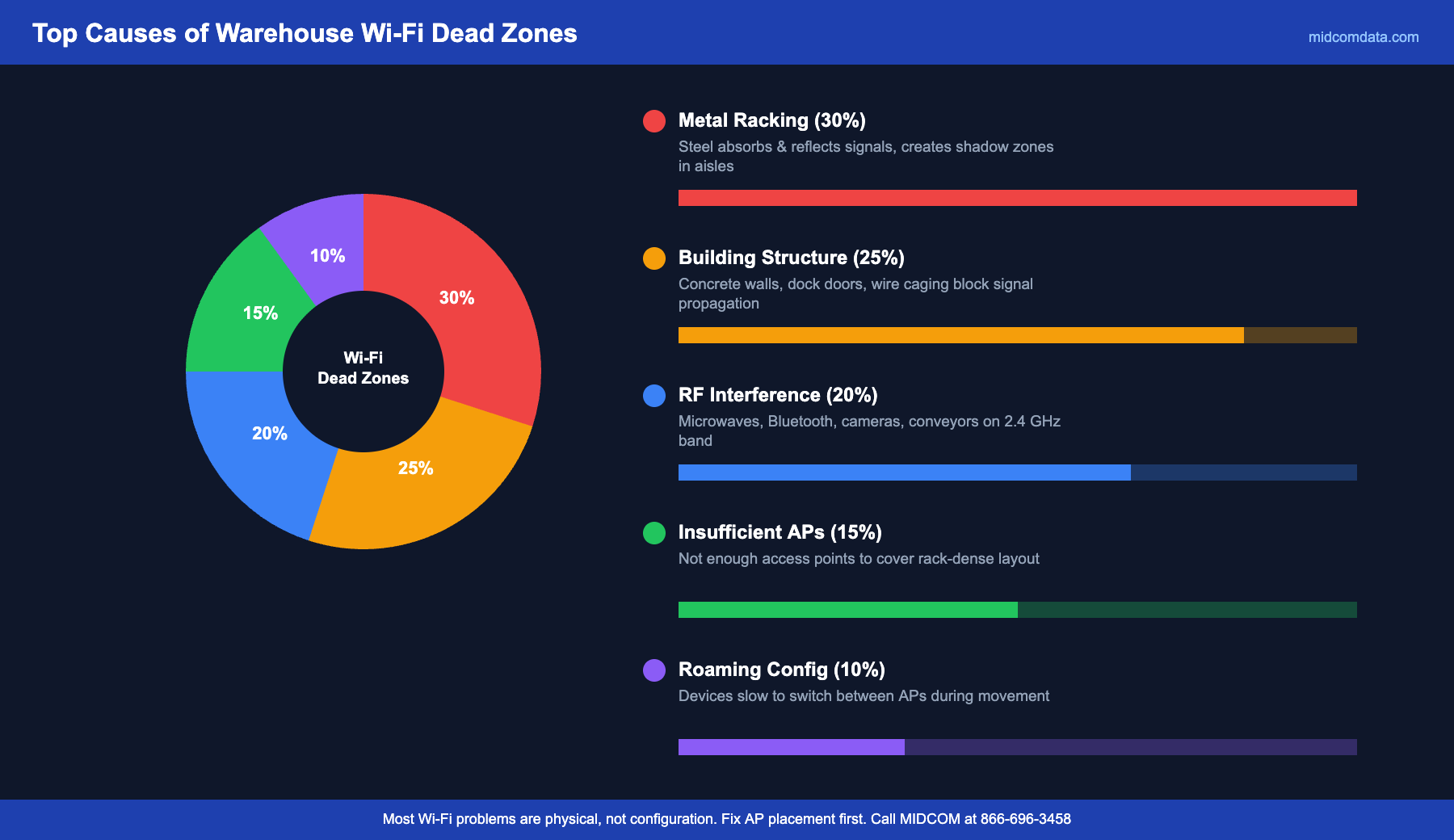
A warehouse is one of the hardest indoor environments for wireless coverage. The reasons are physical, and no amount of router configuration fully compensates for a bad physical layout.
Metal Racking Blocks and Reflects Signals
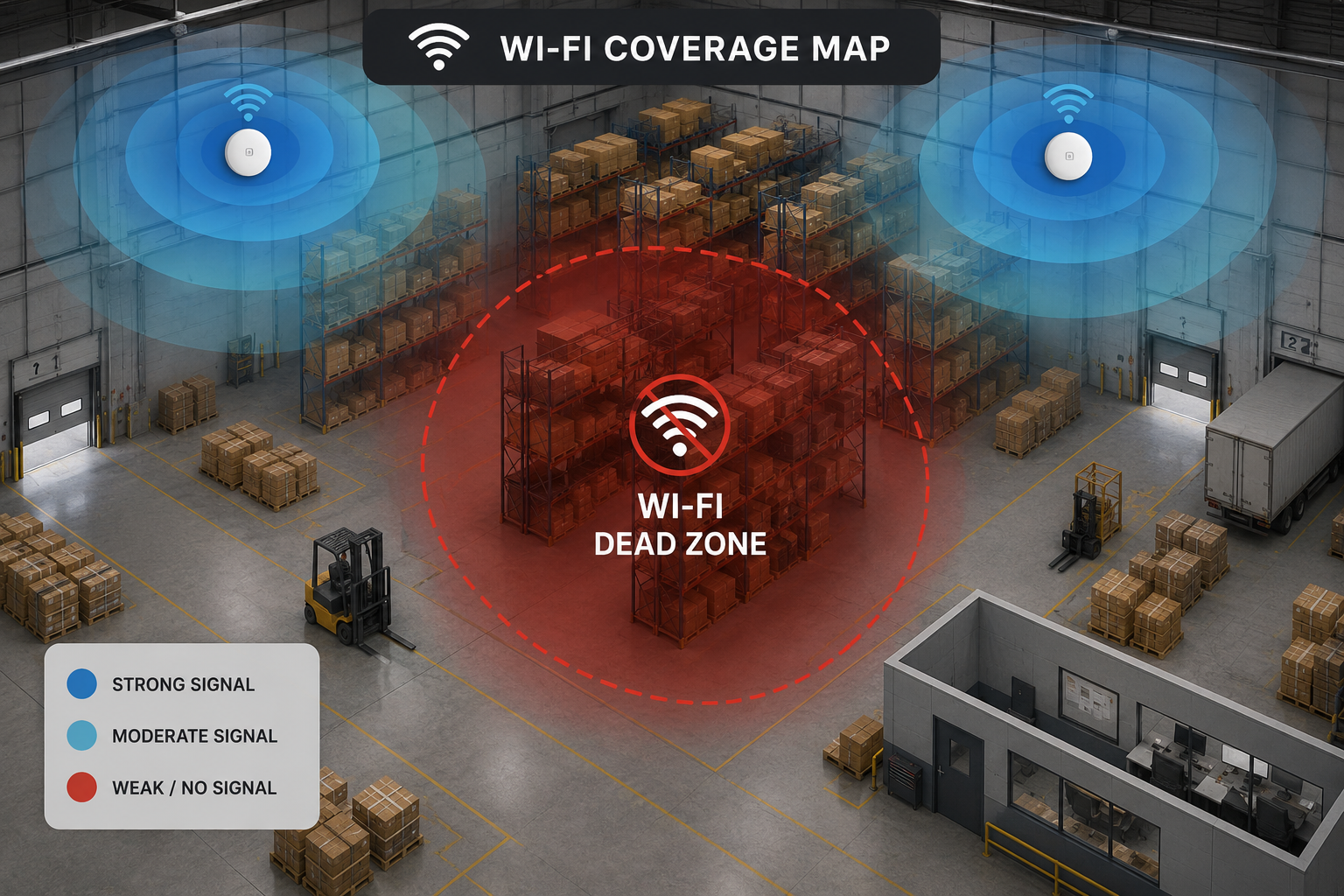
Steel pallet racking is the worst enemy of warehouse Wi-Fi. Metal absorbs and reflects radio waves, creating shadow zones behind and between rack rows where signal strength drops sharply. A 40-foot-tall rack aisle is effectively a metal canyon for Wi-Fi signals. Access points mounted on the ceiling may provide strong coverage in the open areas of the warehouse while leaving rack aisles with weak or no signal.
The solution is access point placement, not just access point quantity. APs mounted at or between rack level heights, or directional antennas aimed down rack aisles, cover these dead spots better than adding more ceiling-mounted APs and hoping for the best.
Building Materials and Layout
Concrete block walls, metal-skinned dock doors, wire mesh caging around high-value storage areas, and even large inventory stacks (especially pallets of liquid product) all attenuate Wi-Fi signals. A warehouse layout that changed since the original Wi-Fi installation — new walls, added dock doors, reconfigured racking — may have dead zones that did not exist when the network was designed.
RF Interference from Other Equipment
Microwave ovens in the break room (2.4 GHz), Bluetooth devices, wireless security cameras, neighboring warehouses’ Wi-Fi networks, and even some motorized conveyor systems generate radio frequency interference that degrades Wi-Fi performance. The 2.4 GHz band is especially crowded in industrial environments. Moving your scanner network to the 5 GHz band (or Wi-Fi 6/6E at 6 GHz) reduces interference but requires access points and devices that support those frequencies.
Symptoms of Wi-Fi Problems vs. Scanner Problems
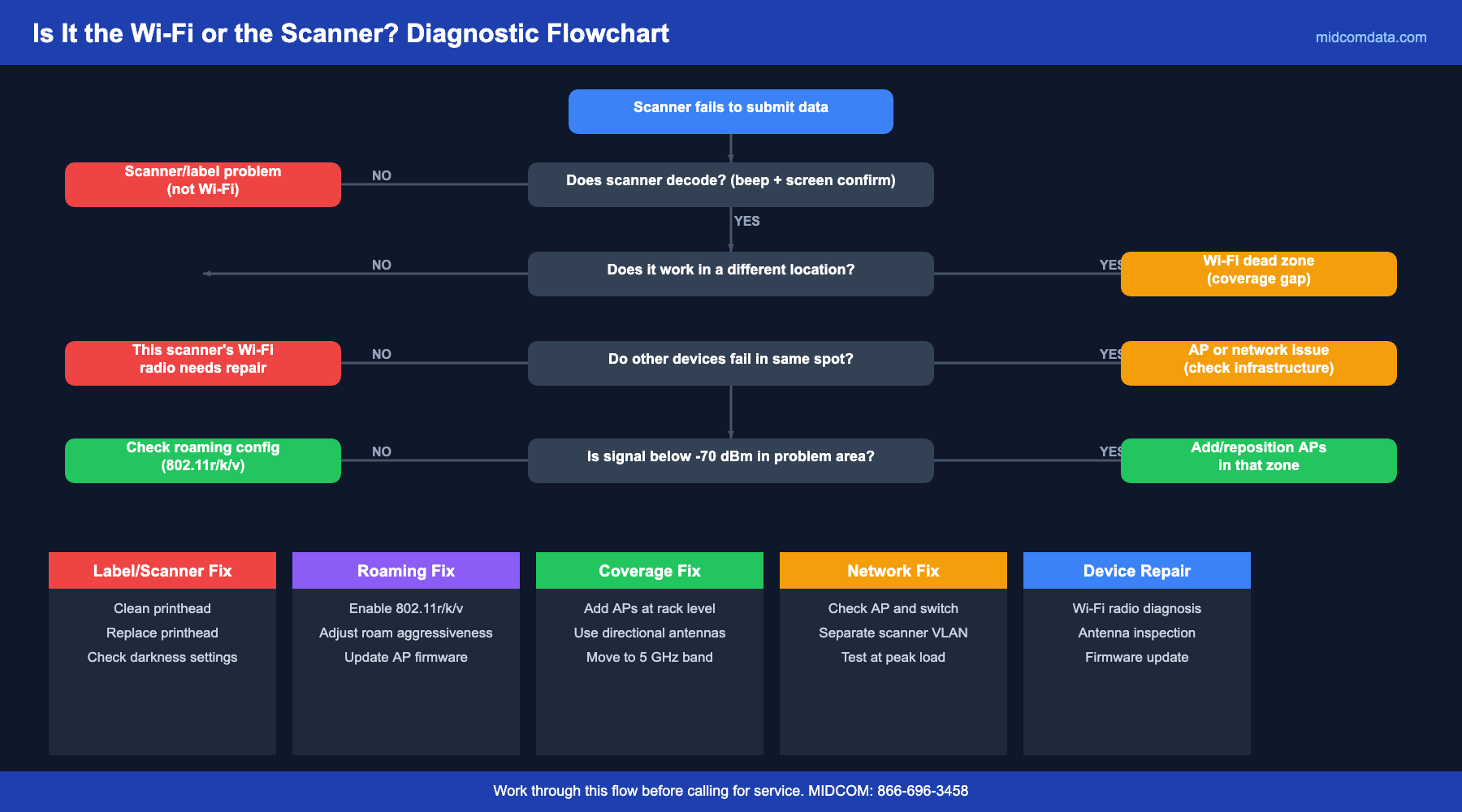
Before you call for scanner repair, check whether the issue is location-dependent. If the same scanner works in one area but fails in another, the problem is coverage, not the device.
Intermittent scan failures in specific areas. Workers report that scanning “sometimes does not work” in certain aisles or zones. This is the classic dead zone pattern. The scanner reads the barcode successfully (you may hear the beep or see the decode on the scanner screen) but the data fails to reach the WMS because the Wi-Fi connection dropped.
Slow response after scanning. The worker scans and waits 3 to 10 seconds for the WMS to acknowledge the scan. This delay usually means the device is on the edge of coverage — connected but with weak signal and high packet loss. The data eventually gets through, but the throughput hit across hundreds of scans per shift adds up over a shift.
Devices disconnecting and reconnecting. Workers see the Wi-Fi icon disappear and reappear, or the device shows it is connected but the WMS application shows “disconnected from server.” This is a roaming problem — the device is trying to switch between access points and dropping the connection during the handoff.
All devices fail simultaneously. If every scanner in the facility stops communicating at the same time, the problem is upstream: the access point, the switch, or the WMS server itself. Check your network infrastructure before troubleshooting individual devices.
Quick Diagnostic Steps
Before calling for a site survey, your IT team can gather useful information with a few simple tests.
Map the Dead Zones
Walk the warehouse with a mobile device running a Wi-Fi analyzer app (Wi-Fi Analyzer for Android is free). Record the signal strength (RSSI) at each rack aisle, dock door, and work area. Signal below -70 dBm is marginal. Below -75 dBm, you will see scan failures and slow responses. Below -80 dBm, the connection is effectively unusable for real-time scanning.
Check Roaming Configuration
Most enterprise access points support fast roaming protocols (802.11r, 802.11k, 802.11v). If these are not enabled, devices take longer to switch between APs as workers move through the warehouse, causing momentary disconnections. Zebra mobile computers also have roaming aggressiveness settings in their Wi-Fi configuration — setting this too low means the device holds onto a weak AP instead of switching to a stronger one.
Test at Peak Load
Wi-Fi problems often appear only during peak shifts when all devices are active. An AP that handles 10 devices well may struggle with 30. Test during your busiest shift, not during quiet hours when only a few devices are connected.
Fixes That Work
AP Placement Over AP Quantity
Adding more ceiling-mounted access points does not fix dead zones caused by metal racking. Adding one AP positioned correctly — at rack level, aimed down the aisle — does more than three additional APs on the ceiling. A professional site survey with a predictive Wi-Fi planning tool maps the coverage based on your actual building materials, racking layout, and device density, and recommends specific AP locations.
Move to 5 GHz or Wi-Fi 6
The 5 GHz band offers more channels and less interference than 2.4 GHz, though with shorter range per AP. In a warehouse where APs are already positioned at short intervals (which they should be in a rack-dense environment), 5 GHz provides more reliable throughput. Wi-Fi 6 (802.11ax) adds better performance in high-density device environments, which matters when you have dozens of scanners hitting the same APs at once.
Make sure your scanner fleet supports the frequency you plan to deploy. Older scanners from 2015 or earlier may only support 2.4 GHz. MIDCOM’s barcode scanner catalog includes current models with dual-band and Wi-Fi 6 support.
Configure Roaming Properly
Enable 802.11r (fast BSS transition), 802.11k (neighbor reports), and 802.11v (BSS transition management) on your access points and ensure your mobile devices support them. These protocols reduce the handoff time when a device moves from one AP to another from several seconds to under 50 milliseconds — fast enough that the WMS connection stays alive during the transition.
Separate Your Networks
Put your scanner and mobile computer fleet on a dedicated SSID and VLAN, separate from guest Wi-Fi, security cameras, and office devices. This prevents non-critical traffic from competing with scan data for bandwidth and gives you clearer visibility into network performance for your production devices.
When to Call for Help
If you have mapped your dead zones and the problem is clearly coverage gaps, a professional site survey and AP installation is the quickest fix. If the symptoms are inconsistent and do not follow a clear geographic pattern, the problem may be RF interference, AP firmware issues, or network configuration — all of which need deeper investigation.
For scanner-specific issues that persist even in areas with strong Wi-Fi signal, the problem is likely the device itself. MIDCOM’s on-site repair service can diagnose whether the issue is the scanner’s Wi-Fi radio, antenna, or software configuration. We carry parts and can often resolve it in a single visit.
Frequently Asked Questions
How do I tell if my barcode scanner problem is Wi-Fi or hardware?
Test the scanner in an area with confirmed strong Wi-Fi signal (above -65 dBm). If it works reliably there but fails in other areas, the problem is coverage. If it fails everywhere, including next to an access point, the scanner’s Wi-Fi radio or antenna may need repair. Also check if the scanner successfully decodes the barcode (beep and on-screen confirmation) but fails to transmit the data — that is a connectivity issue, not a scanner issue.
What Wi-Fi signal strength do barcode scanners need?
For reliable real-time scanning, you need a signal strength (RSSI) of -65 dBm or better. At -70 dBm, you will start seeing occasional delays. Below -75 dBm, scan submissions become unreliable. Below -80 dBm, the connection is effectively unusable. These thresholds apply to active throughput, not just the connection indicator on the device — a device can show “connected” at -78 dBm while failing to transmit data reliably.
Will upgrading to Wi-Fi 6 fix my warehouse coverage problems?
Wi-Fi 6 improves performance in high-device-density environments and offers better throughput per connection, but it does not fundamentally change the physics of signal propagation through metal racking. If your dead zones are caused by physical obstructions, Wi-Fi 6 will have the same dead zones. The fix is better AP placement, not a newer Wi-Fi standard. That said, if you are upgrading APs anyway, Wi-Fi 6 is the right choice for the improved device handling.
How many access points does a warehouse need?
There is no universal answer because it depends entirely on your building layout, racking configuration, and number of devices. A 50,000 square foot open warehouse might need 6 to 8 APs. The same square footage with dense pallet racking to 30 feet could need 15 to 20. A professional site survey with predictive modeling is the only reliable way to get the number right. Under-deploying APs and adding more later always costs more than getting the design right the first time.
Can old scanners cause Wi-Fi problems for the whole network?
Yes. Older scanners that only support 802.11b/g (2.4 GHz) force the access point to slow down for them, which reduces throughput for every device on that AP. This is called the “slow client” problem. If you have a mixed fleet of old and new scanners, put the old devices on a separate SSID so they do not drag down performance for your newer equipment. Better yet, replace aging scanners — the productivity gain usually pays for the hardware within months.
Fix the Network Before You Replace the Scanner
The next time a worker says their scanner “is not working,” check the Wi-Fi before ordering a replacement. A $50 access point repositioning or a $200 roaming configuration fix solves problems that a $2,000 scanner replacement never would. For scanner diagnostics, network troubleshooting, or help selecting Wi-Fi-compatible devices, Contact MIDCOM Data Technologies at 866-696-3458.