
Error Codes
What This Error Means
The cutter blade is stuck in the media path, preventing the printer from advancing labels. This typically occurs when debris accumulates in the cutter module or when labels are not feeding cleanly through the cutting mechanism.
Common Causes
- Adhesive buildup on the cutter blade from label stock
- Label material or backing paper stuck in the cutter mechanism
- Worn or damaged cutter blade (part SDP-108-896-AM578)
How to Fix It
- 1 Turn off the printer and unplug the power cord.
- 2 Open the printhead assembly to access the cutter module.
- 3 Inspect the cutter blade and surrounding area for debris, torn labels, or adhesive buildup.
- 4 Clean the cutter blade with a cotton swab dampened with isopropyl alcohol.
- 5 Remove any label material or backing paper caught in the mechanism.
- 6 Close the printhead, plug in the printer, and power on.
- 7 Run a test print to verify the cutter operates smoothly.
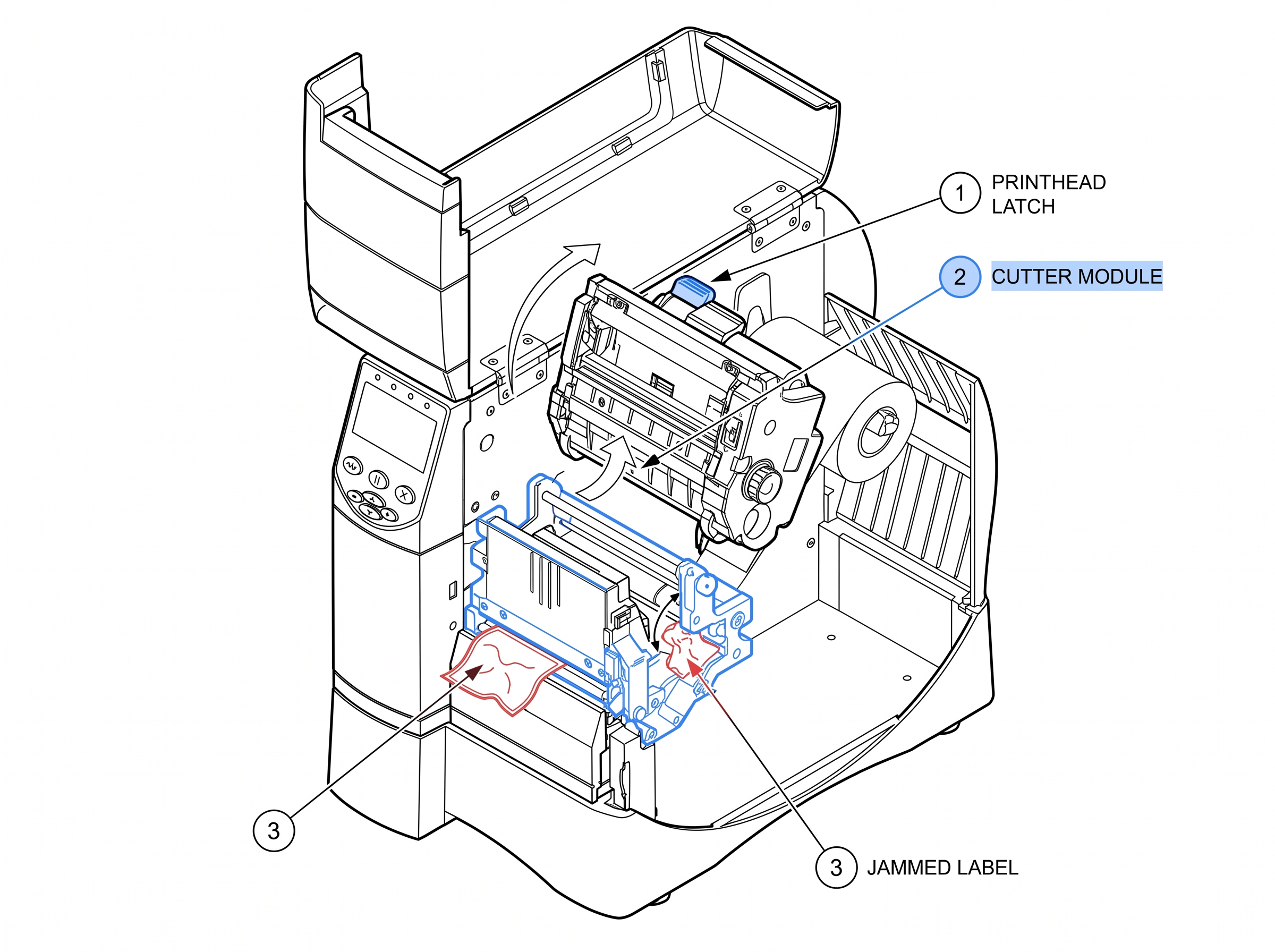 Fig 1. Cutter
The printer is reorganizing its internal flash memory (8MB on the ZM400). This is a normal maintenance process, but freq...
View fixWhat This Error Means
The printer is reorganizing its internal flash memory (8MB on the ZM400). This is a normal maintenance process, but frequent defragmentation indicates label formats are consuming excessive memory or writing/erasing too frequently.
Common Causes
- Label formats that repeatedly write to and erase flash memory
- Poorly coded ZPL label formats using ^DF (download format) on every print job
- Low available memory — check with ZPL command ^WD to list stored objects
How to Fix It
- 1 Allow the printer to finish the defragmentation process completely.
- 2 Once finished, print a configuration label (hold FEED for 2 seconds) and check the "Bytes Free" value.
- 3 If memory is low, use ^ID to delete unused stored formats and graphics.
- 4 Review your ZPL code — replace ^DF commands with ^XA...^XZ that print without storing to flash.
- 5 If frequent defragmentation continues, consider the optional 64MB memory card upgrade.
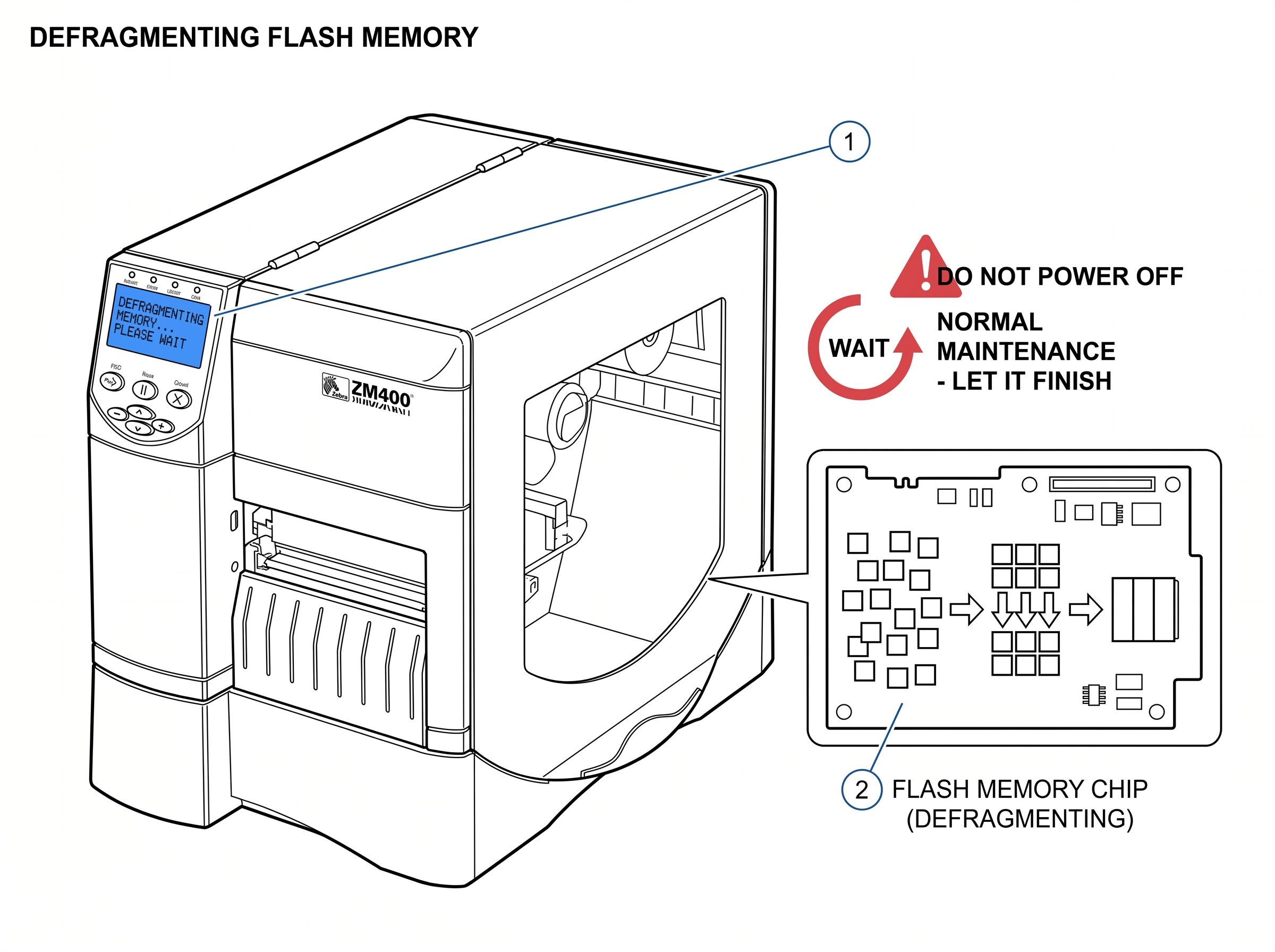 Fig 2. Defragmenting
The printer has detected that one or more heating elements on the printhead have failed. The ZM400 printhead contains hu...
View fixWhat This Error Means
The printer has detected that one or more heating elements on the printhead have failed. The ZM400 printhead contains hundreds of tiny heating elements (dots) that create the print image. When elements fail, you'll see white vertical lines running through your printed labels.
Common Causes
- Normal printhead wear — elements degrade over millions of inches printed
- Abrasive label stock or contaminated ribbon accelerating wear
- Running the printhead at excessive darkness/heat settings
- Physical damage from improper cleaning tools (never use metal objects)
How to Fix It
- 1 Print a configuration label and look for white vertical lines in the barcode area. Lines confirm failed elements.
- 2 Clean the printhead with a Zebra-approved cleaning pen or isopropyl alcohol on a cotton swab. Sometimes debris mimics a bad element.
- 3 If lines persist after cleaning, the printhead needs replacement. The ZM400 uses printhead part #79800M (203 dpi), #79801M (300 dpi), or #79802M (600 dpi).
- 4 If you want to continue printing temporarily, you can disable this warning via the front panel: TOOLS > HEAD RESIST > select a value. This only suppresses the alert — print quality will still be degraded.
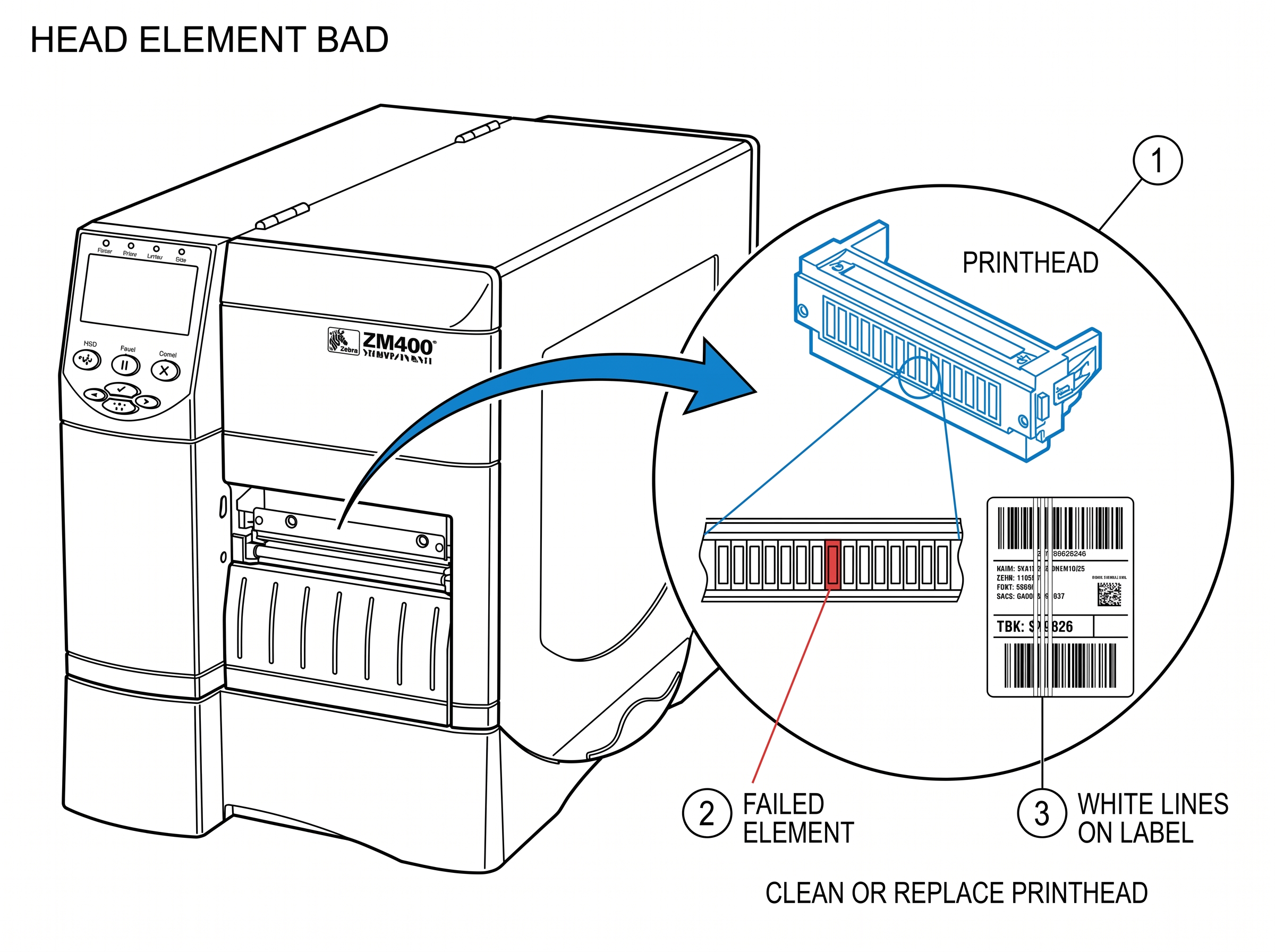 Fig 3. Head Element Bad
The printhead latch is not fully closed, or the printer thinks it isn't. The ZM400 uses a head-open sensor to prevent pr...
View fixWhat This Error Means
The printhead latch is not fully closed, or the printer thinks it isn't. The ZM400 uses a head-open sensor to prevent printing when the printhead assembly isn't properly secured, since printing with an open head can damage both the printhead and media.
Common Causes
- Printhead not fully latched — the latch must click into place
- Media loaded incorrectly, preventing the head from closing flush
- Faulty head-open sensor or damaged sensor flag
- Debris blocking the printhead from seating properly
How to Fix It
- 1 Open the printhead latch completely, then close it firmly until you hear it click.
- 2 If it won't latch, check that media and ribbon are routed correctly and not bunched up under the printhead.
- 3 Inspect the latch mechanism for damage or debris. Clean the area around the latch.
- 4 Check the small head-open sensor flag (a small plastic tab near the printhead assembly). If bent or broken, it won't trigger the sensor correctly.
- 5 Power cycle the printer after re-latching.
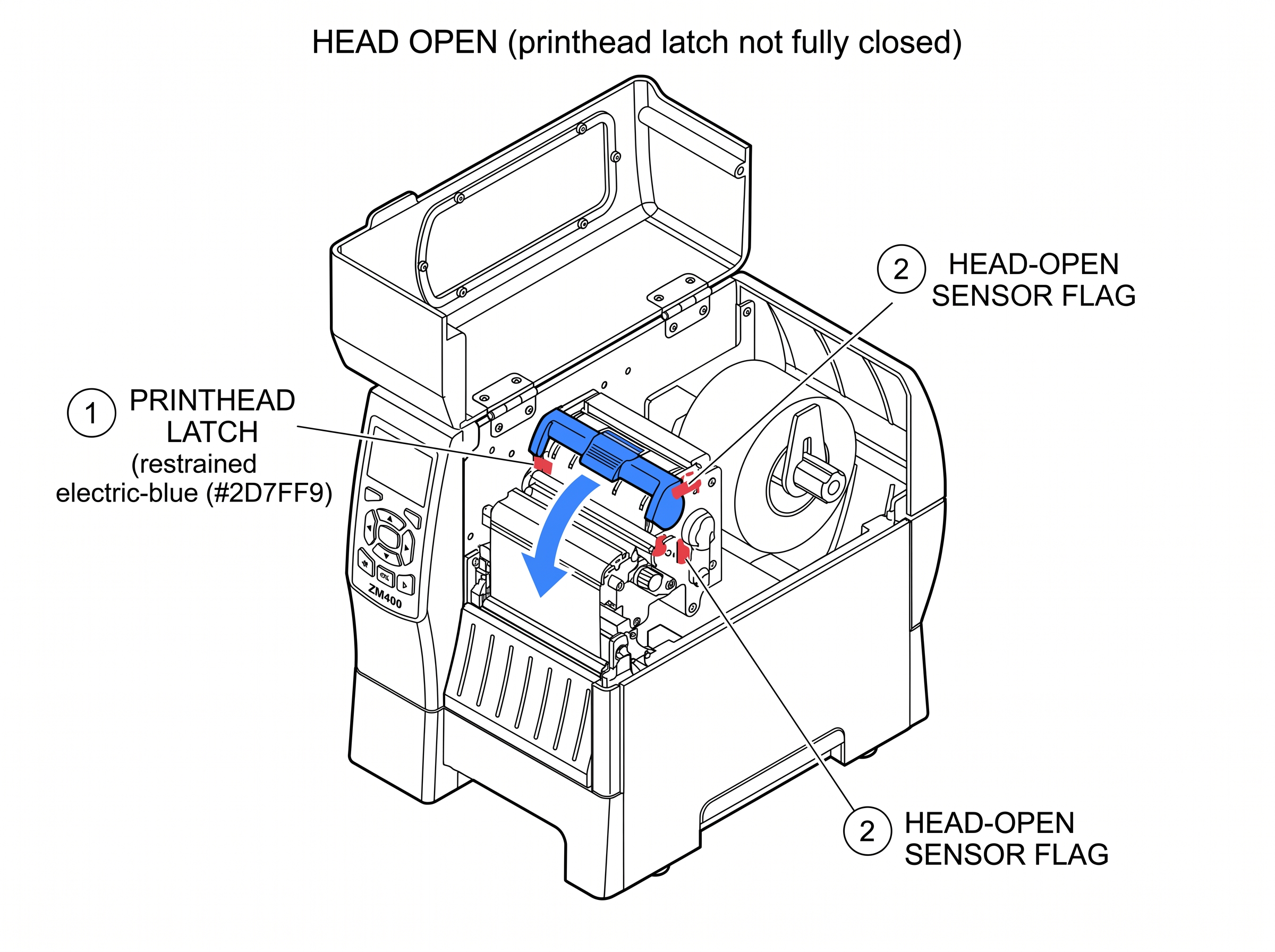 Fig 4. Head Open
The printer cannot communicate with the printhead or the installed printhead is not compatible with this printer model. ...
View fixWhat This Error Means
The printer cannot communicate with the printhead or the installed printhead is not compatible with this printer model. The ZM400 reads a small data chip on the printhead to verify its identity, DPI resolution, and usage history.
Common Causes
- Wrong printhead installed — using a printhead from a different Zebra model or wrong DPI
- Printhead data cable not fully connected after a printhead swap
- Damaged or corroded printhead connector pins
- Printhead data chip failure
How to Fix It
- 1 Verify the printhead part number matches your ZM400's DPI: 79800M (203 dpi), 79801M (300 dpi), or 79802M (600 dpi).
- 2 Power off. Open the printhead and disconnect, then reconnect, the printhead data cable. Make sure the connector is fully seated.
- 3 Check the connector pins for corrosion or bent pins. Clean with isopropyl alcohol if needed.
- 4 Power on and check if the error clears.
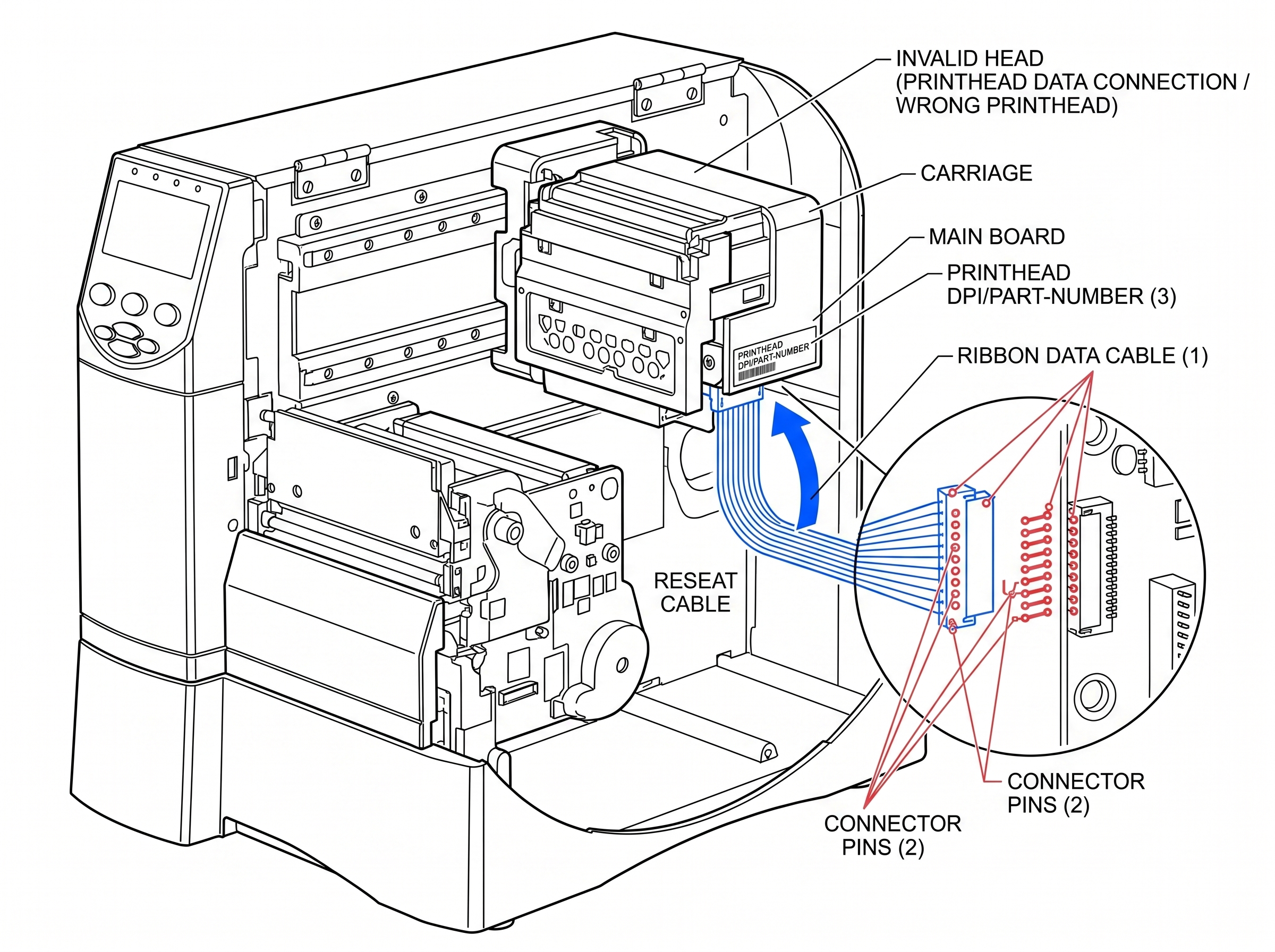 Fig 5. Invalid Head
The printer has run out of available memory to process your print job. The ZM400 ships with 16MB DRAM (working memory) a...
View fixWhat This Error Means
The printer has run out of available memory to process your print job. The ZM400 ships with 16MB DRAM (working memory) and 8MB flash (storage). Large label formats with embedded graphics, multiple fonts, or high-resolution images can easily exhaust available memory.
Common Causes
- Label format contains large embedded graphics or bitmapped fonts
- Too many stored formats, fonts, or graphics in flash memory
- Print width set wider than the actual label, forcing the printer to image unused area
- Complex label with many fields processed at once
How to Fix It
- 1 Run ^WD via ZPL to see what's stored in memory and how much space each object uses.
- 2 Delete unused formats and graphics with ^ID (e.g., ^IDR:*.GRF deletes all stored graphics).
- 3 Set print width to match your actual label width using ^PW — don't leave it at the default maximum.
- 4 Optimize label formats: use scalable fonts instead of bitmaps, compress graphics, avoid downloading redundant formats.
- 5 If memory demands are consistently high, install the optional CompactFlash memory expansion card.
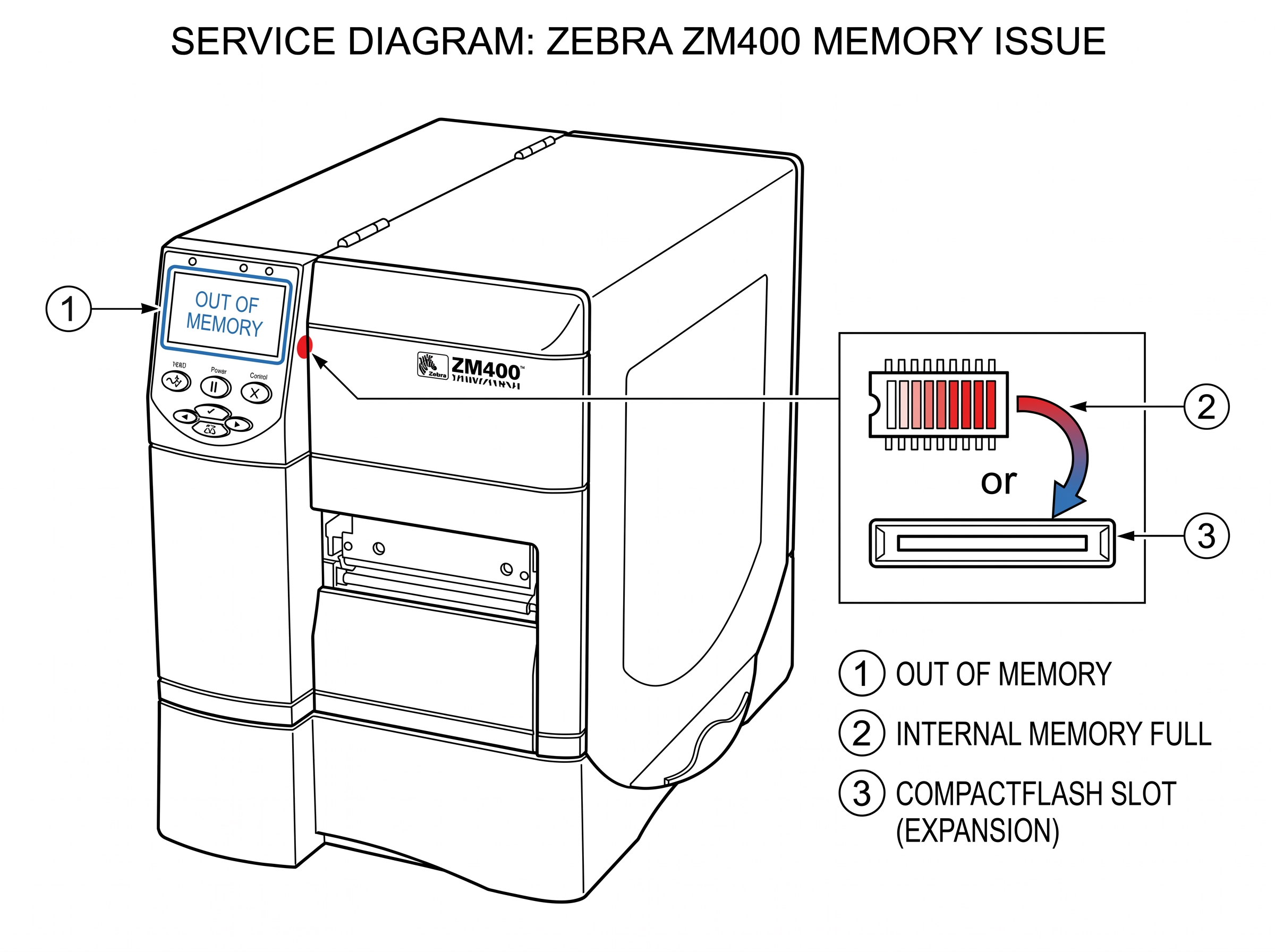 Fig 6. Out of Memory
The media sensor cannot detect labels in the media path. Despite the name, this error often occurs even when labels are ...
View fixWhat This Error Means
The media sensor cannot detect labels in the media path. Despite the name, this error often occurs even when labels are loaded — it usually means the sensor can't distinguish between the label and the gap (or mark) between labels.
Common Causes
- Media roll is actually empty
- Media sensor is not calibrated for the current label stock
- Media is loaded but not routed under the media sensor correctly
- Sensor set to the wrong type (transmissive vs. reflective) for your media
- Dirty media sensor — dust or adhesive residue blocking the sensor eye
How to Fix It
- 1 Open the printhead and verify that labels are loaded and routed correctly under the media guides and over the platen roller.
- 2 Check that the movable media sensor is positioned over the gap between labels (for gap media) or over the black mark (for mark media).
- 3 Run auto-calibration: with the printhead closed, hold FEED + PAUSE simultaneously until the printer feeds several labels.
- 4 If using non-standard media, you may need manual calibration via TOOLS > SENSORS > MANUAL CALIBRATE.
- 5 Clean the media sensor with compressed air or a cotton swab to remove dust buildup.
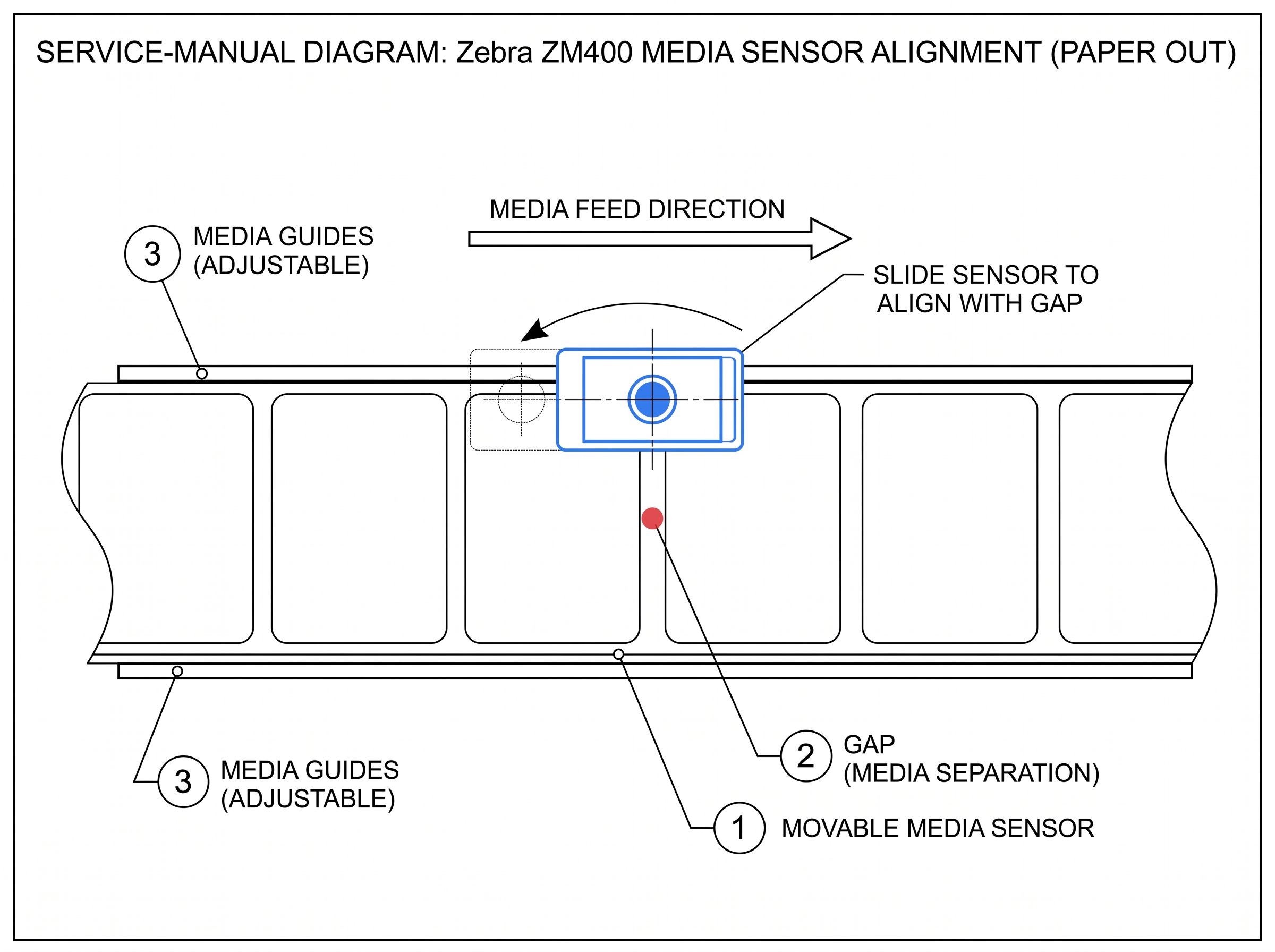 Fig 7. Paper Out
The printer detects ribbon installed but the print mode is set to Direct Thermal (which doesn't use ribbon). This is a m...
View fixWhat This Error Means
The printer detects ribbon installed but the print mode is set to Direct Thermal (which doesn't use ribbon). This is a mode mismatch — either the ribbon shouldn't be there, or the print mode setting is wrong.
Common Causes
- Print mode set to "Direct Thermal" while ribbon is installed
- Switched from thermal transfer labels to direct thermal labels but forgot to remove the ribbon
- ZPL command ^MT in a label format overriding the front panel setting
How to Fix It
- 1 Decide which print mode you need: Thermal Transfer (uses ribbon) or Direct Thermal (no ribbon).
- 2 If using thermal transfer labels: go to SETUP > PRINT MODE > select THERMAL TRANSFER.
- 3 If using direct thermal labels: remove the ribbon from the printer entirely.
- 4 Check your ZPL formats for ^MTD (direct thermal) or ^MTT (thermal transfer) commands that may override the panel setting.
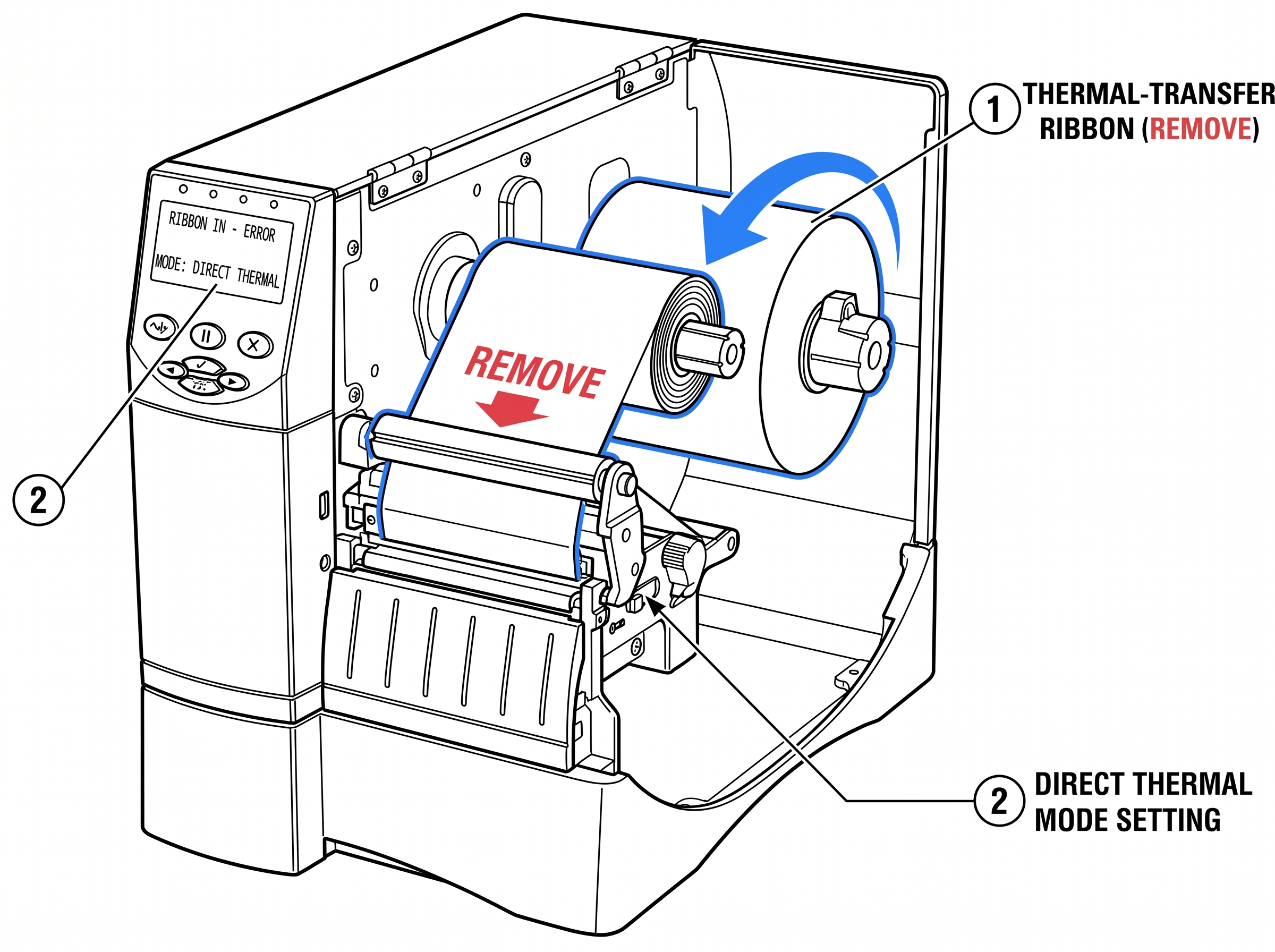 Fig 8. Ribbon In
The printer is set to Thermal Transfer mode but cannot detect ribbon. Either the ribbon is missing, loaded incorrectly, ...
View fixWhat This Error Means
The printer is set to Thermal Transfer mode but cannot detect ribbon. Either the ribbon is missing, loaded incorrectly, or the ribbon sensor can't see it.
Common Causes
- Ribbon roll is empty or not installed
- Ribbon loaded with the ink-coated side facing the wrong direction (ink side must face the label)
- Ribbon not routed past the ribbon sensor correctly
- Print mode set to "Thermal Transfer" when using direct thermal labels (no ribbon needed)
How to Fix It
- 1 If using direct thermal labels (no ribbon needed): go to SETUP > PRINT MODE > select DIRECT THERMAL.
- 2 If using thermal transfer: verify the ribbon is loaded correctly. The ink side must face the label — do the sticky-note test: press a sticky note against the ribbon surface. The side that leaves a mark is the ink side.
- 3 Re-route the ribbon according to the loading diagram inside the printer cover. Ribbon must pass over the printhead and under the ribbon sensor.
- 4 If the ribbon roll is empty, replace it and close the printhead.
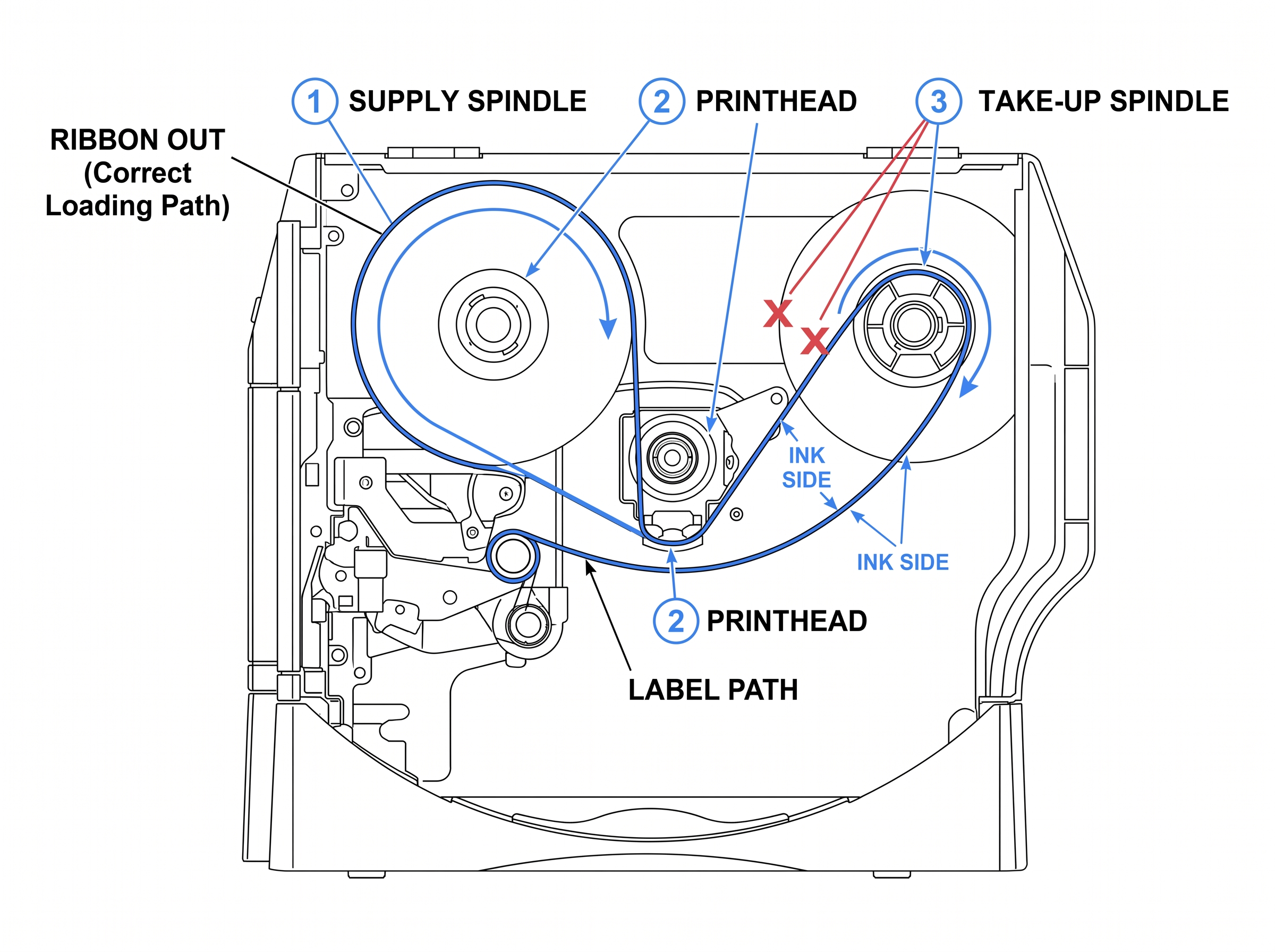 Fig 9. Ribbon Out
The printhead thermistor (temperature sensor) is not responding. The ZM400 uses the thermistor to monitor printhead temp...
View fixWhat This Error Means
The printhead thermistor (temperature sensor) is not responding. The ZM400 uses the thermistor to monitor printhead temperature and adjust heat output. Without it, the printer cannot safely control print quality and will not print.
Common Causes
- Loose or disconnected printhead data cable
- Damaged printhead thermistor (usually from physical impact or age)
- Corroded connector between the printhead and main logic board
- Failed printhead requiring replacement
How to Fix It
- 1 Power off the printer and unplug it.
- 2 Open the printhead assembly and disconnect the printhead data cable.
- 3 Inspect the cable connector for bent pins, corrosion, or debris. Clean with isopropyl alcohol.
- 4 Reconnect the data cable firmly — it should click or seat snugly.
- 5 Power on and check if the error clears.
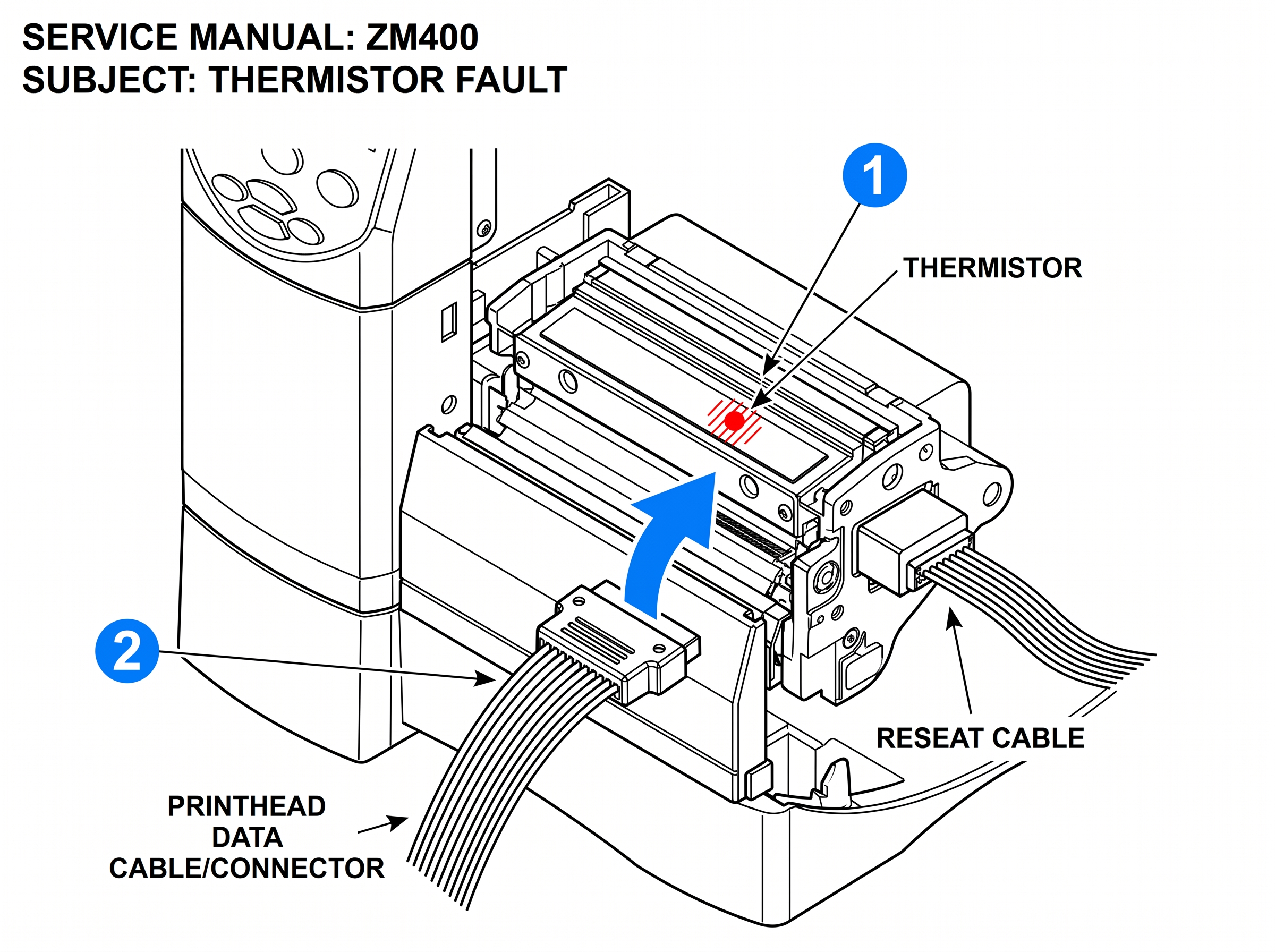 Fig 10. Thermistor Fault
The printhead temperature is below the minimum operating threshold. The ZM400's operating range starts at 40°F (4.4°C). ...
View fixWhat This Error Means
The printhead temperature is below the minimum operating threshold. The ZM400's operating range starts at 40°F (4.4°C). If the printhead is too cold, the heating elements can't reach the correct temperature for quality printing.
Common Causes
- Printer is in a cold warehouse, loading dock, or unheated space
- Printer was just powered on in a cold environment and hasn't warmed up
- Faulty thermistor giving incorrect temperature readings
How to Fix It
- 1 Allow the printer to warm up for 10-15 minutes in the current environment. The warning should clear on its own.
- 2 If the environment is below 40°F, the printer needs to be relocated to a warmer area. The ZM400 is not rated for sub-40°F operation.
- 3 If the environment is warm but the error persists, the thermistor may be faulty (see Thermistor Fault above).
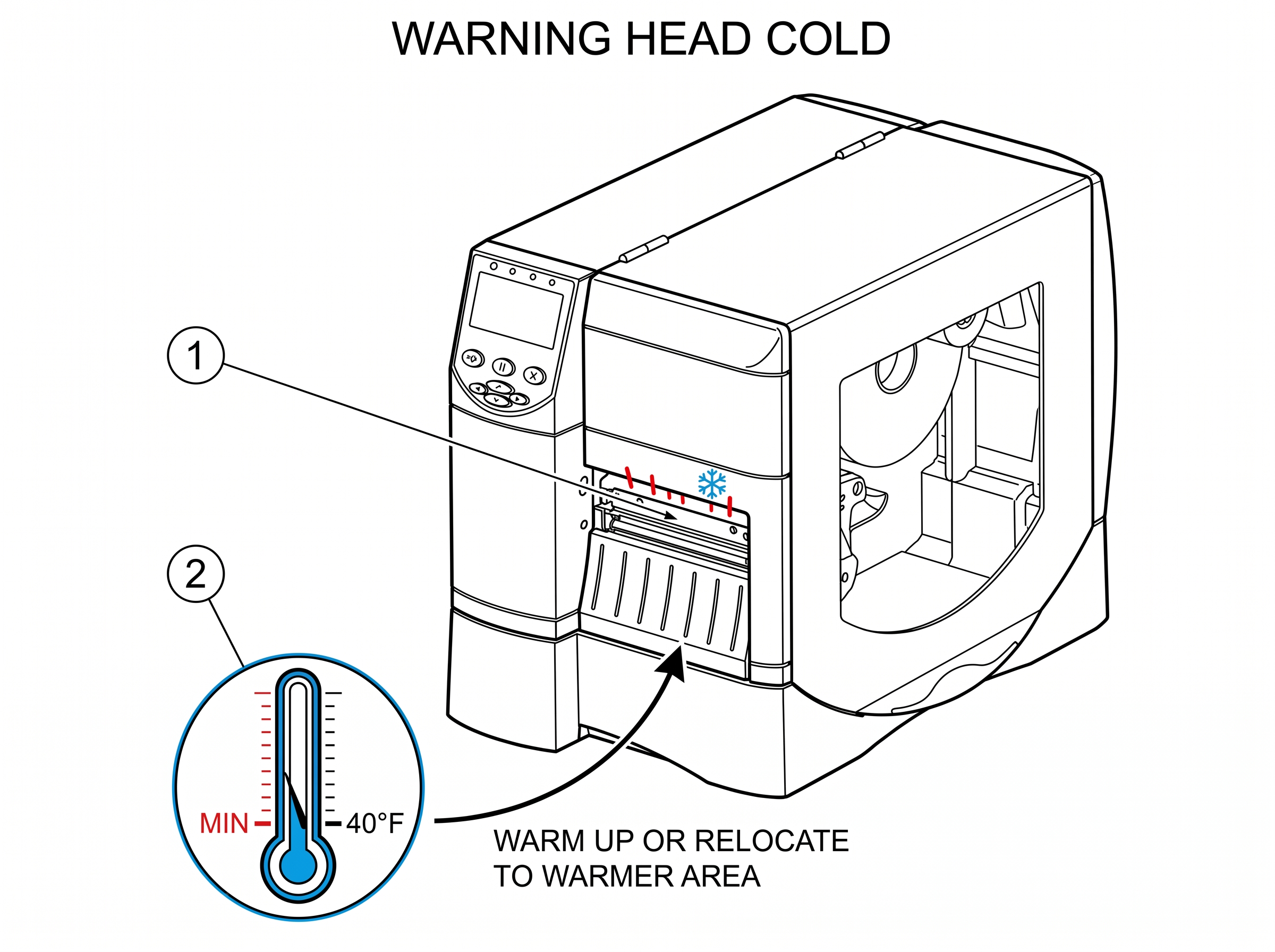 Fig 11. Head Cold
The printhead has exceeded its maximum safe operating temperature. The ZM400 will pause printing automatically to protec...
View fixWhat This Error Means
The printhead has exceeded its maximum safe operating temperature. The ZM400 will pause printing automatically to protect the printhead from permanent damage. The printer will resume once the printhead cools to a safe level.
Common Causes
- Extended high-volume print runs at fast speeds
- Darkness/heat setting higher than necessary for the media and ribbon combination
- High ambient temperature in the operating environment
- Inadequate ventilation around the printer
How to Fix It
- 1 Let the printer cool. It will resume printing on its own once the temperature drops.
- 2 Lower the darkness setting: SETUP > DARKNESS. Start at the lowest setting that produces an acceptable print and work up. Most ZM400 users run between 15-20.
- 3 Reduce print speed if possible. Slower speeds generate less heat.
- 4 Ensure the printer has adequate airflow — don't enclose it in a cabinet or push it against a wall.
- 5 If this happens frequently during normal print volumes, the thermistor may need inspection.
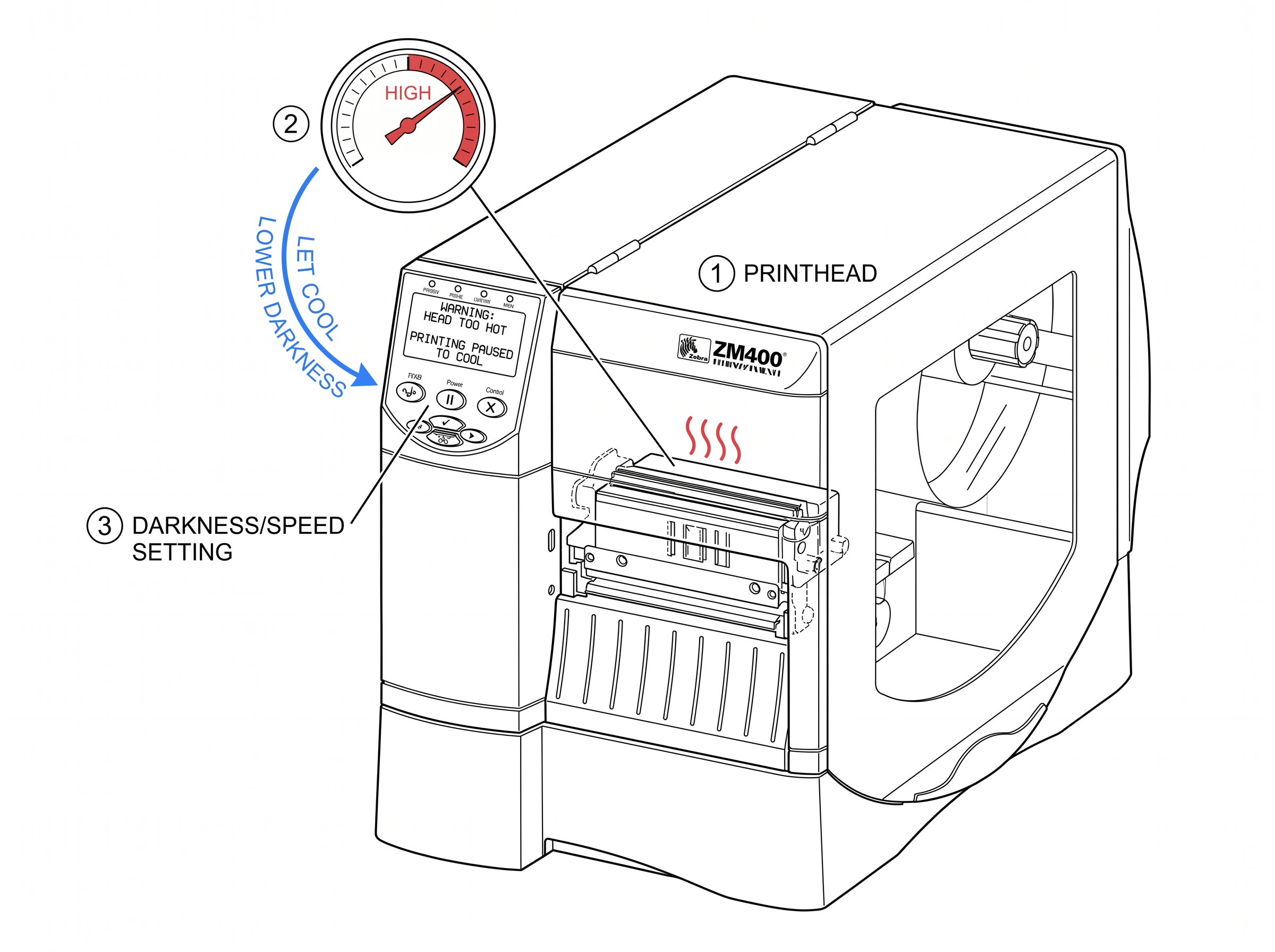 Fig 12. Head too Hot
Calibration Issues
Overview
The ZM400's auto-calibration routine detects the media type, gap/mark position, and ribbon presence. Run this any time you load a new roll of labels, change label sizes, or replace the printhead.
How to Run It
With media loaded and printhead closed, hold FEED + PAUSE simultaneously. The printer will feed 4–6 labels while calibrating.
What It Does
The printer adjusts the transmissive and reflective sensors to match your media's gap thickness, backing opacity, and label spacing.
How to Verify
After calibration, press FEED once — the printer should advance exactly one label and stop at the next gap. If it over-feeds or under-feeds, calibration failed.
ZPL Alternative
Send Send ~JC to trigger auto-calibration remotely. to trigger auto-calibration remotely.
Manual calibration lets you set sensor thresholds by hand. Use this when auto-calibration produces inconsistent results ...
View guidePrinting a sensor profile helps diagnose persistent calibration failures. The profile shows the actual sensor readings g...
View guideRibbon & Label Issues
Overview
The ZM400 supports both print modes, and mixing them up is one of the most common causes of Ribbon In / Ribbon Out errors. Knowing which one your job needs is the first troubleshooting step for any ribbon-related error.
^MTT (thermal transfer) or ^MTD (direct thermal).Incorrect ribbon loading is behind most "Ribbon Out" errors on ZM400 printers where ribbon is physically present. The pr...
View guideRibbon wrinkling causes vertical creases in the print image and wastes ribbon. Common on the ZM400 when media guides or ...
View guideWhat Our Customers Are Saying
Repair Videos
MIDCOM Data Technologies on YouTube
See real Zebra printer repairs by our certified field technicians. Printhead replacements, calibration walkthroughs, cutter module service, and preventive maintenance tips.
Visit ChannelWhen to Call MIDCOM
Get your ZM400 running today.
Certified Zebra repair, on-site, nationwide. 30-day warranty on every repair.

